Help home Getting started
Getting started
New to Siyan Stride? Start here. This page shows how to get the app, make an account and finish setup, on iPhone and on Android.
What is Siyan Stride?
Siyan Stride is a walking app. It counts your steps for you, helps you set a daily step goal, and keeps you going with plans, check-ins and friendly groups.
You do not need to type in your steps. The app reads them from your phone’s health app: Apple Health on iPhone, Health Connect on Android.
Siyan Stride is for wellness. It is not a medical device and it does not give medical advice.
How do I get the app?
The app is free to download. Some extra features need a paid membership.
On iPhone
- Open the App Store on your iPhone.
- Search for Siyan Stride.
- Tap Get. Your iPhone may ask for Face ID or your Apple Account password.
- When it is done, tap the Siyan Stride icon to open it.
On Android
- Open Google Play on your phone.
- Search for Siyan Stride.
- Tap Install.
- When it is done, tap Open, or tap the Siyan Stride icon.

Watch: How to download Siyan Stride
Captions are on screen. Voiceover created with AI. It shows the iPhone and Android steps.
Which phones work with Siyan Stride?
Most iPhones and Android phones from the last few years work.
On Android, the phone needs Health Connect. Newer Android phones have it built in. On older phones, the app helps you get it free from Google Play.
There are watch apps too: one for Apple Watch and one for Wear OS watches. See Watch apps.
Do I need an account?
Yes. An account keeps your steps, plans and groups safe, and lets you use the app on a new phone later.
On iPhone
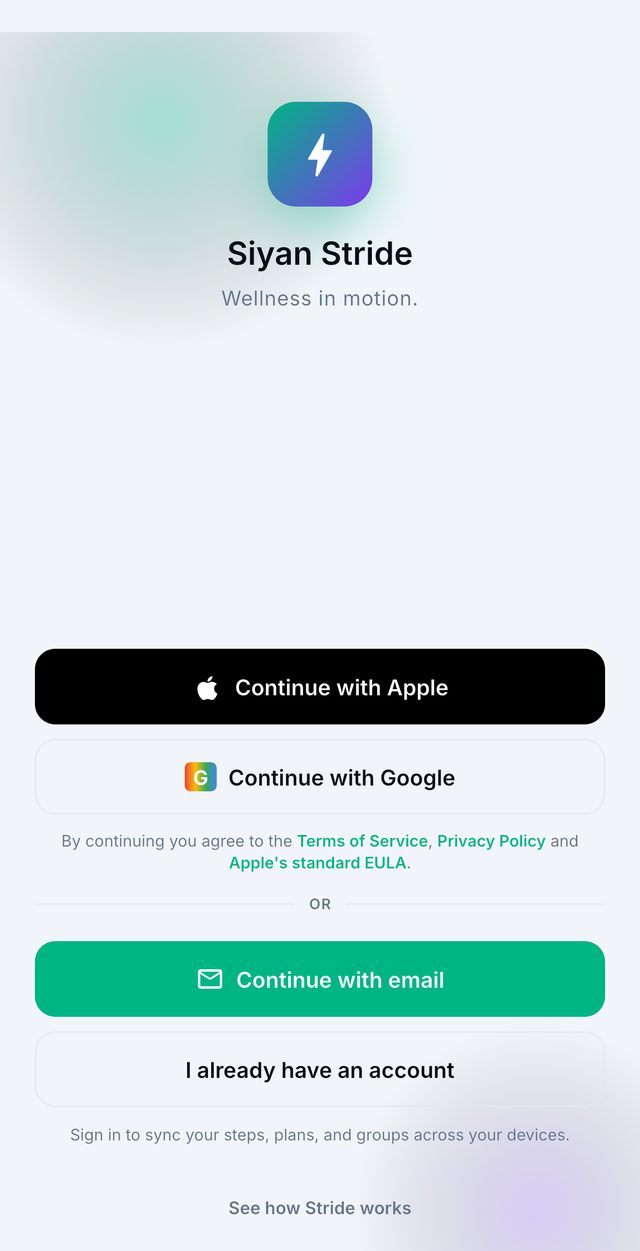
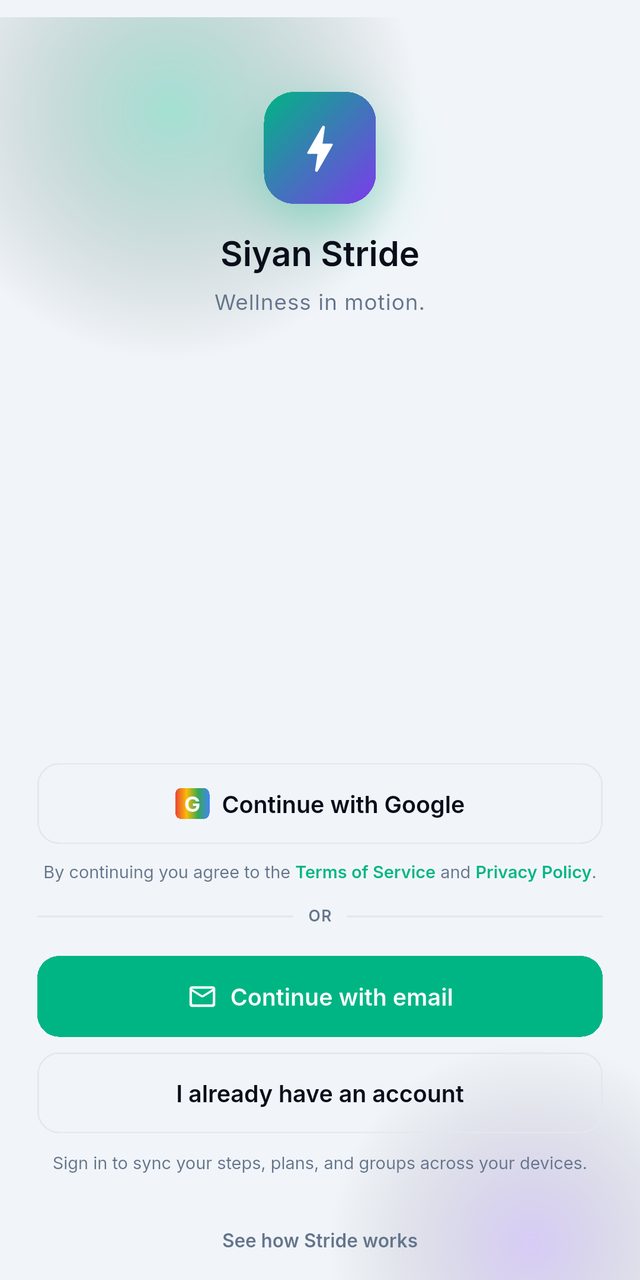
On iPhone you can sign up three ways: Continue with Apple, Continue with Google, or Continue with email.
On Android
On Android you can sign up two ways: Continue with Google, or Continue with email.
How do I make an account with my email?
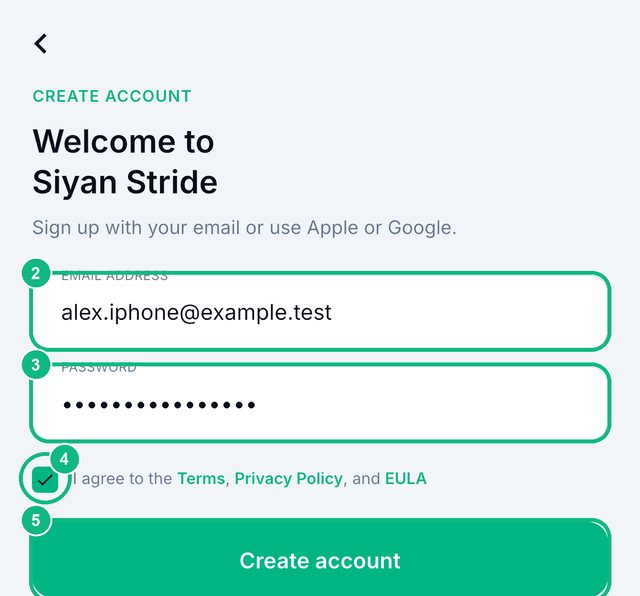
On iPhone
- Open the app and tap Continue with email.
- Type your email address.
- Type a password. It needs at least 8 characters.
- Tick the box: I agree to the Terms, Privacy Policy, and EULA. (EULA means the rules for using the app.)
- Tap Create account.
On Android
- Open the app and tap Continue with email.
- Type your email address.
- Type a password. It needs at least 8 characters.
- Tick the box: I agree to the Terms and Privacy Policy.
- Tap Create account.
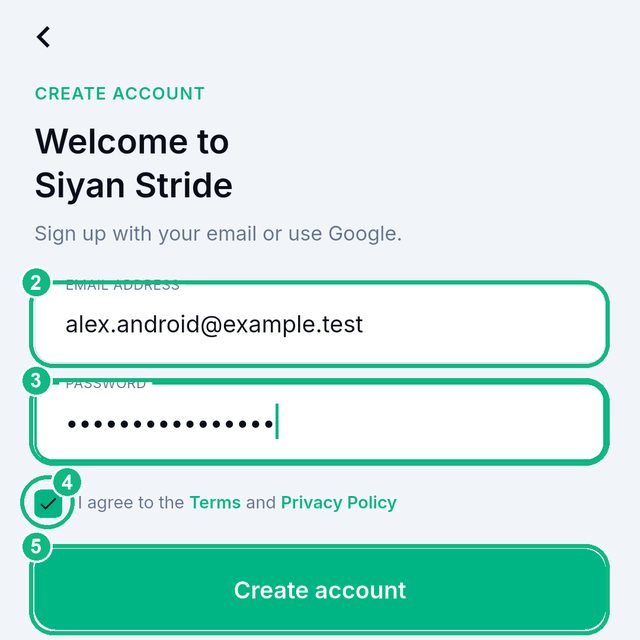
Good to know: There is no name box here. You add your name during setup.
Good to know: If the app asks you to confirm your email, open the email from Siyan Stride and tap the link inside.
Watch: Create your account
Captions are on screen. Voiceover created with AI. It shows the iPhone and Android steps.
I already have an account. How do I sign in?
- Open the app.
- Tap I already have an account.
- Use the same way you used before: Apple (iPhone only), Google, or your email and password.
- Tap Sign in.
I forgot my password. What do I do?
- On the sign-in screen, tap Forgot password?
- Type your email and tap Send reset link.
- Open the email from Siyan Stride and tap the link.
- Type a new password and save it.
Good to know: If you signed up with Apple or Google, you have no Siyan Stride password. Sign in with Apple or Google again.
What happens the first time I open the app?
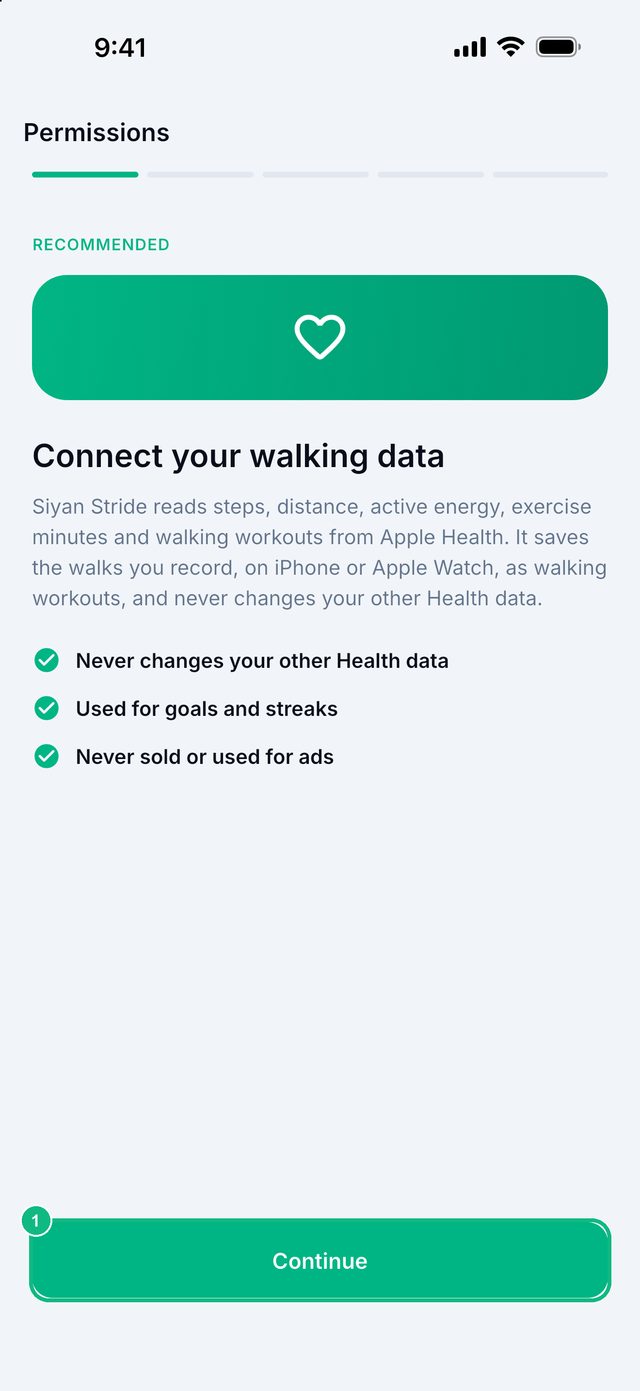
After you make your account, a short setup gets you walking. A bar at the top shows how far along you are. Health and reminders are recommended. The map step is optional.
On iPhone
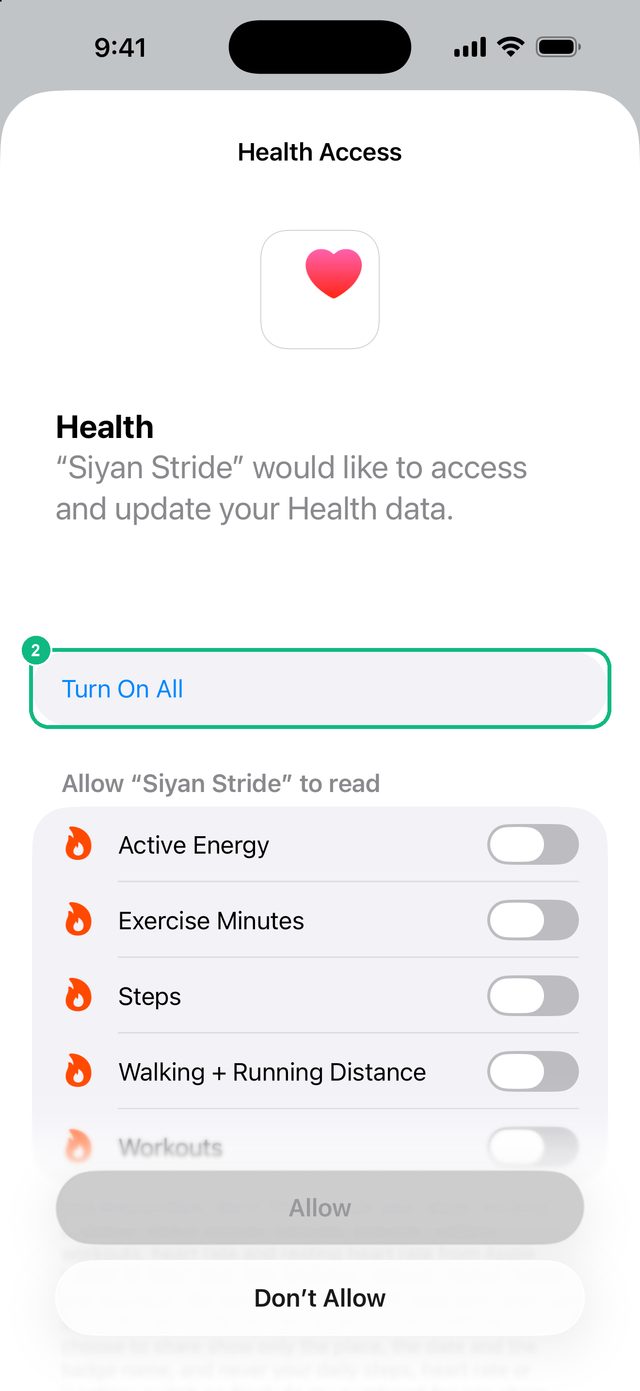
- Connect your walking data. Tap Continue, then Continue again on Connect Apple Health.
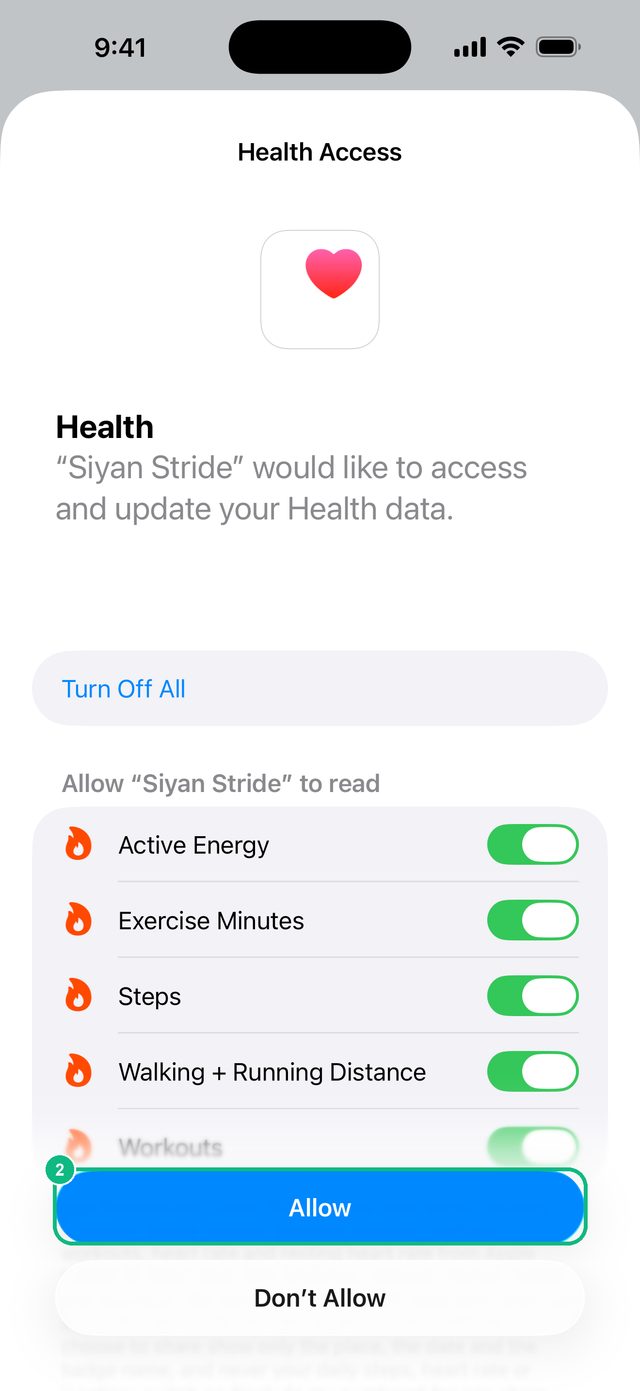
- Apple Health shows a list. Tap Turn On All, then Allow. This is how the app counts your steps.
- Add heart rate? This is optional and only read, never changed. Tap Continue, then Turn On All and Allow, or Don’t Allow.
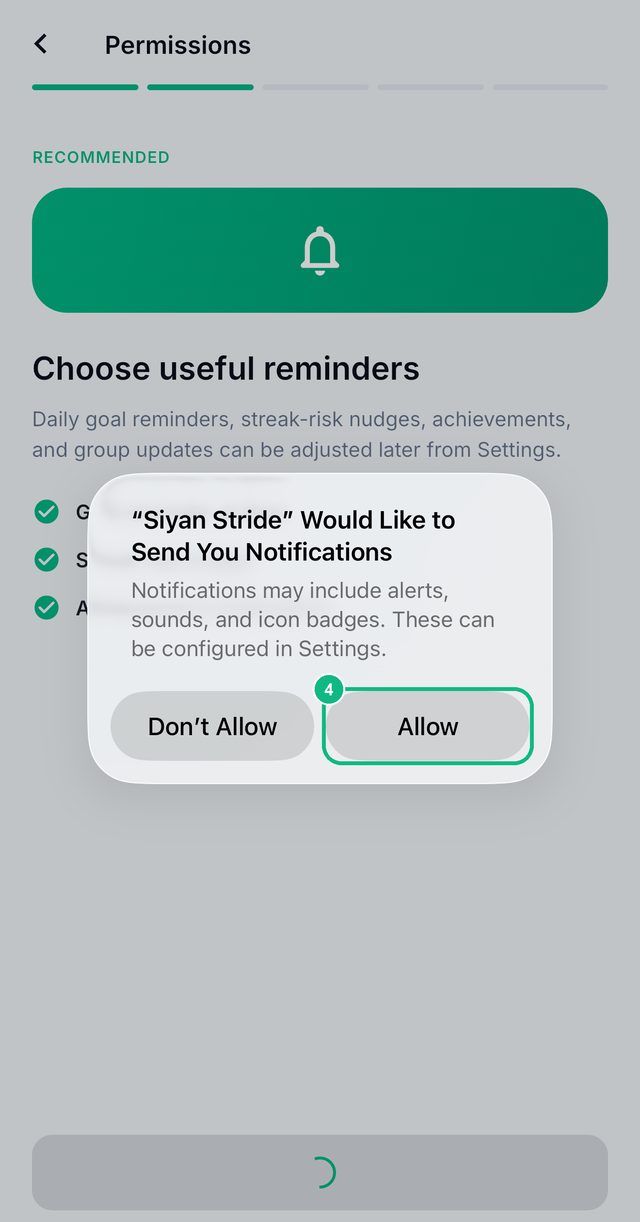
- Choose useful reminders. Tap Continue, then Allow.
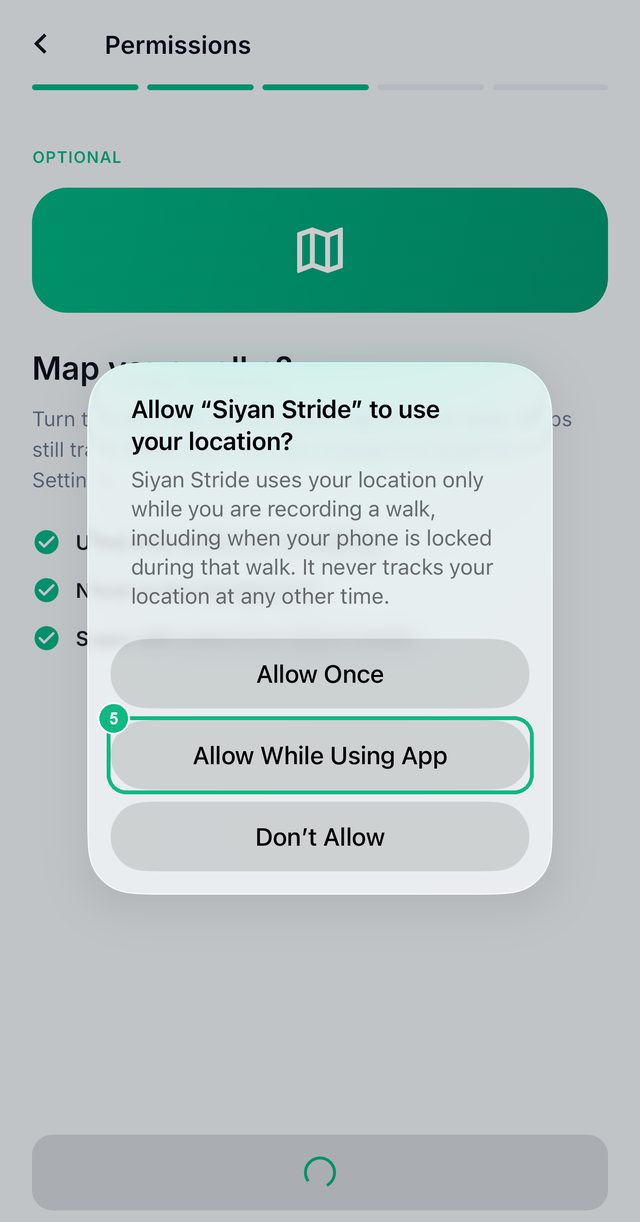
- Map your walks? This is optional. Tap Continue, then Allow While Using App, or Don’t Allow.
- What should we call you? Type your name and tap Save profile.
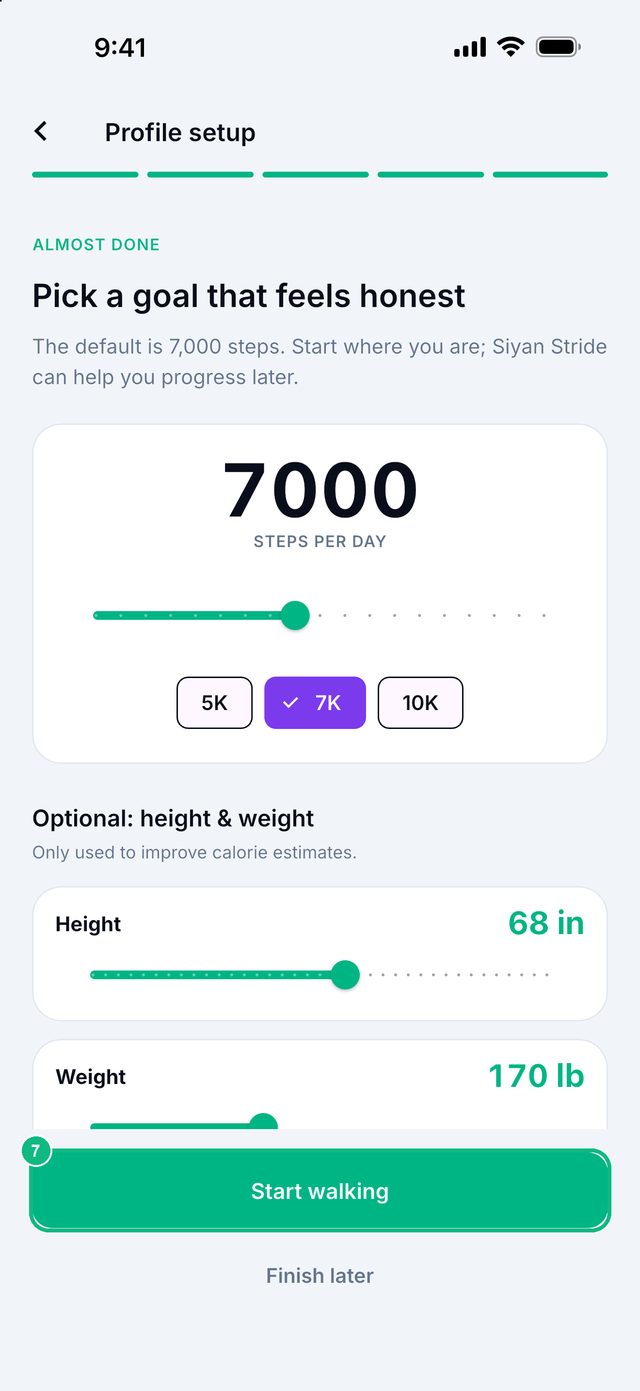
- Pick a goal that feels honest. 7,000 steps a day is the usual start. Tap Start walking.
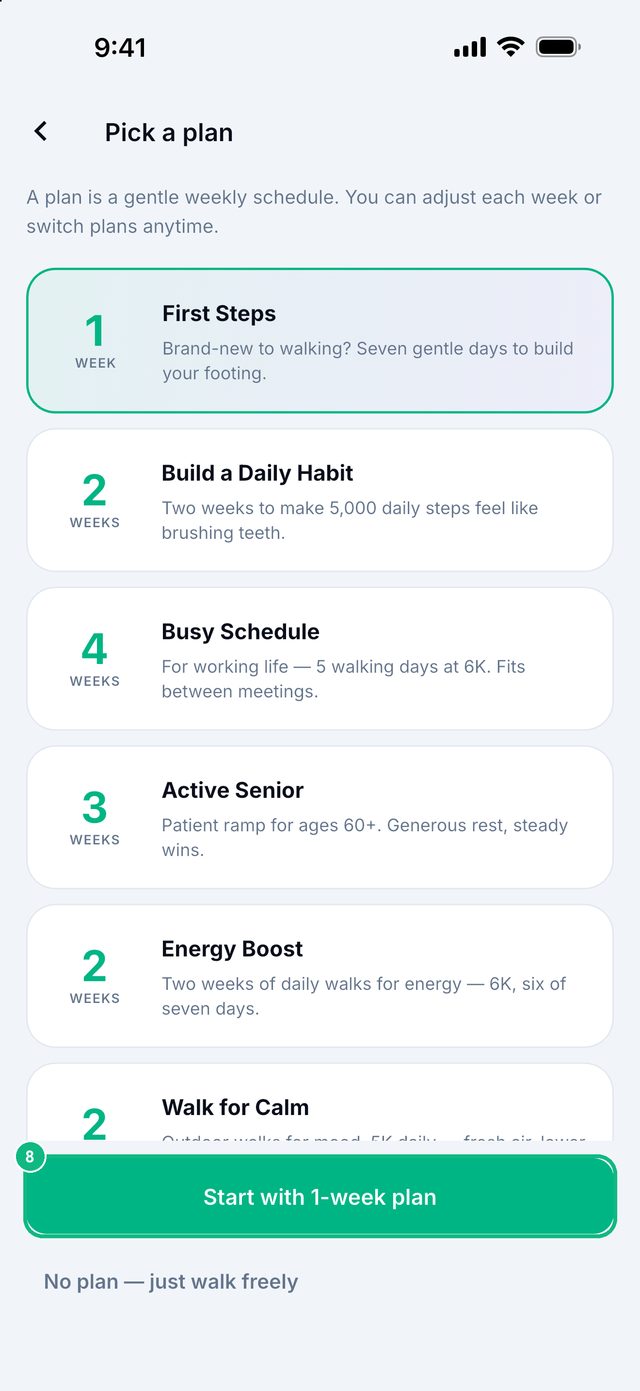
- Pick a plan. Tap a plan and Start with…, or tap No plan — just walk freely.
On Android
- Connect your walking data. Tap Continue.
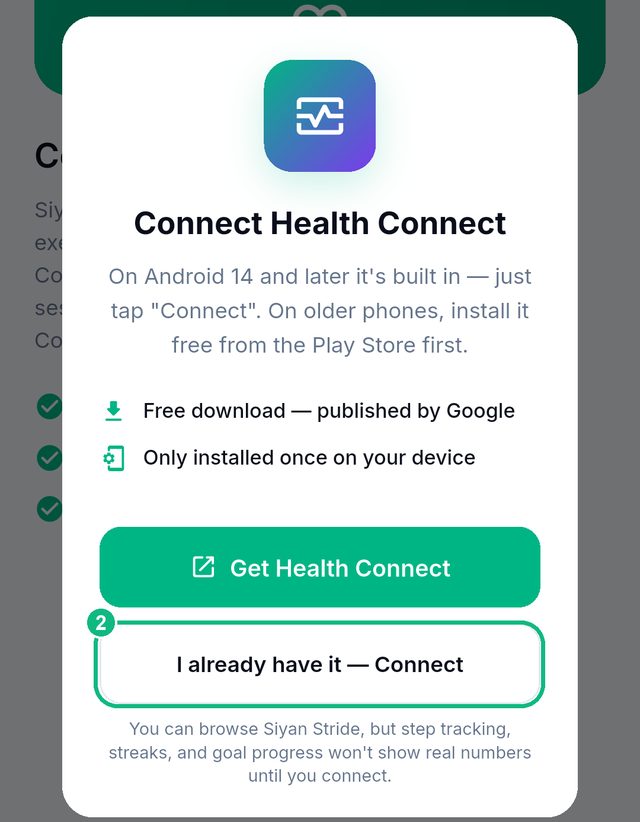
- Connect Health Connect. On Android 14 and newer, tap I already have it — Connect. On older phones, tap Get Health Connect, install it from Google Play, and come back.
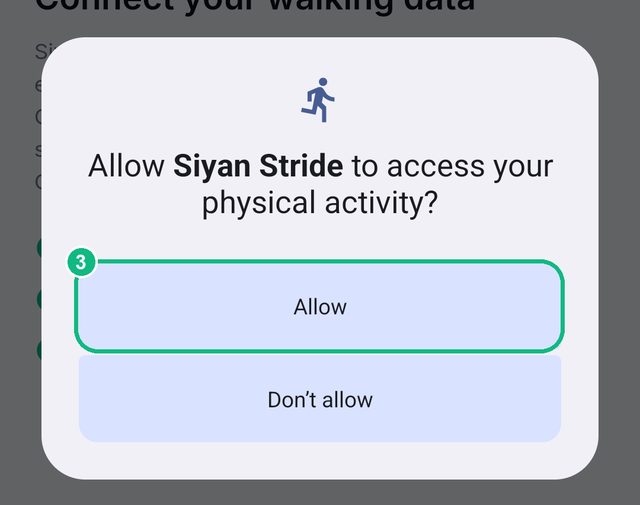
- Allow Siyan Stride to access your physical activity? Tap Allow.
- Health Connect opens. Turn on Allow all, then tap Allow.
- Health Connect asks about past data and data in the background. Tap Allow for both, so your steps keep updating when the app is closed.
- Add heart rate? This is optional and only read. Tap Continue, then Allow all and Allow, or Don’t allow.
- Choose useful reminders. Tap Continue, then Allow.
- Map your walks? This is optional. Tap Continue, then While using the app, or Don’t allow.
- What should we call you? Type your name and tap Save profile.
- Pick a goal that feels honest, then Start walking.
- Pick a plan, or tap No plan — just walk freely.
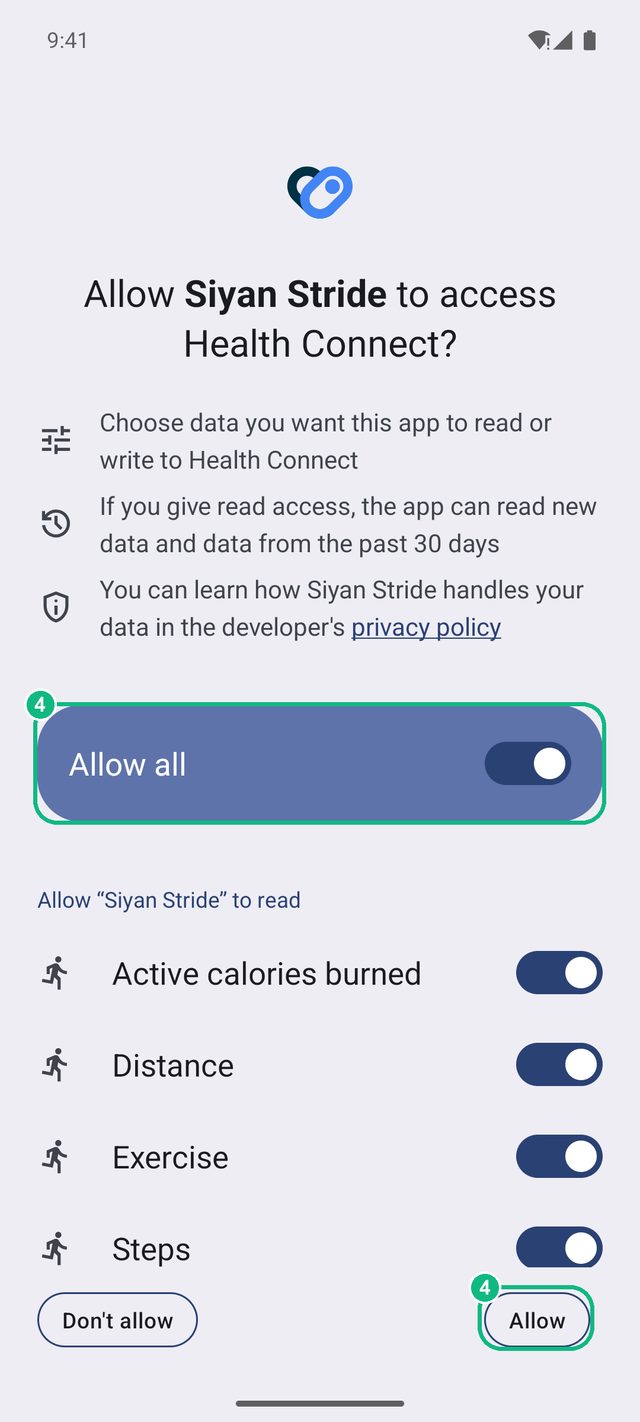
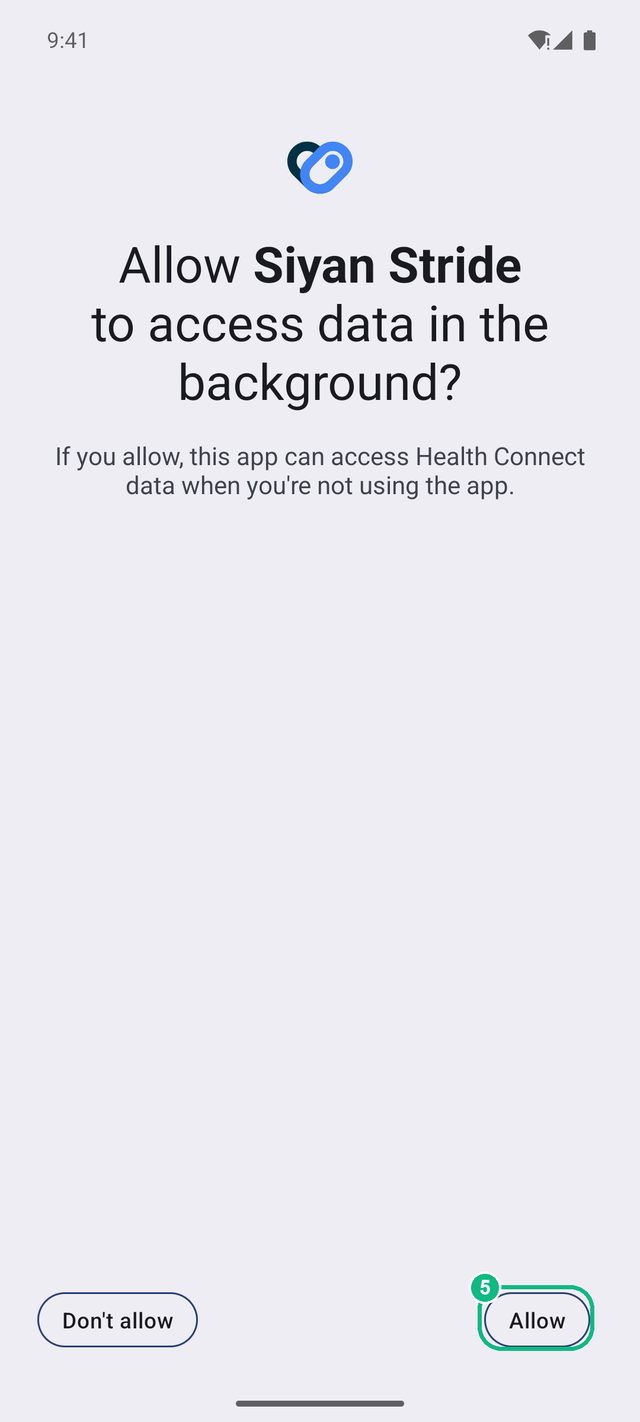
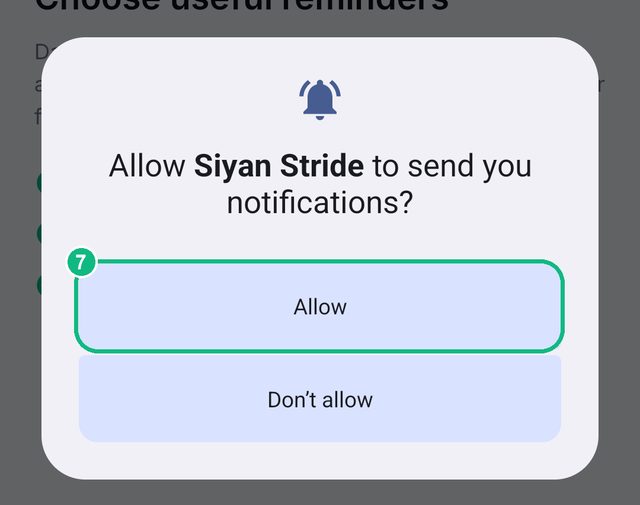
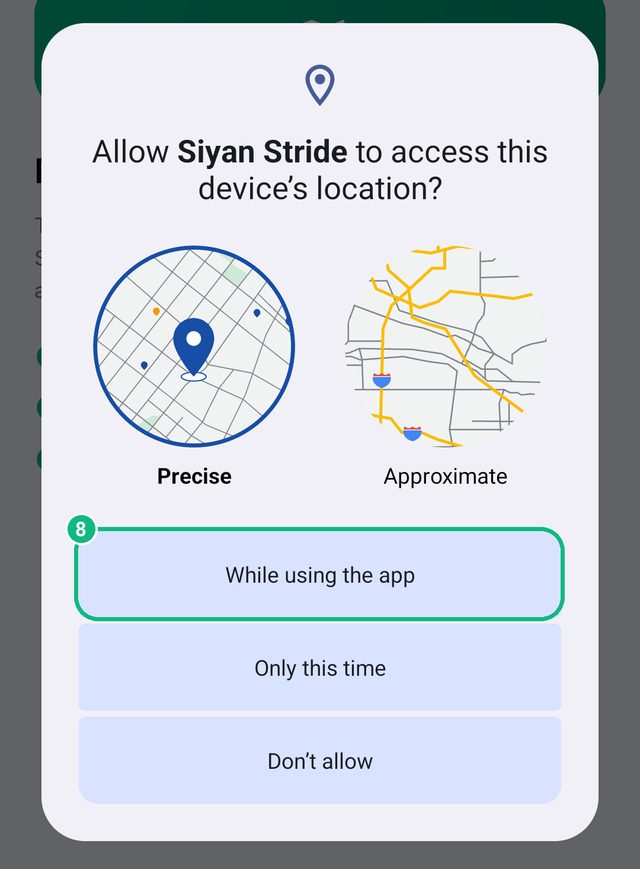
Watch: First-time setup
Captions are on screen. Voiceover created with AI. It shows the iPhone and Android steps.
I skipped a step in setup. How do I turn it on later?
- Steps (Apple Health or Health Connect): tap your round picture at the top right, then the gear for Settings, then Health data. See Steps and health.
- Reminders: open your phone’s Settings app, find Siyan Stride, and turn on Notifications. Then choose your reminders in the app under Settings › Notifications.
- Walk maps: in the app, Settings › Privacy › Map walk routes. Your phone asks for location the first time you map a walk.
- Your name and goal: tap your round picture at the top right, then your name. Change your goal on Today with Edit goal.
How is the app laid out?
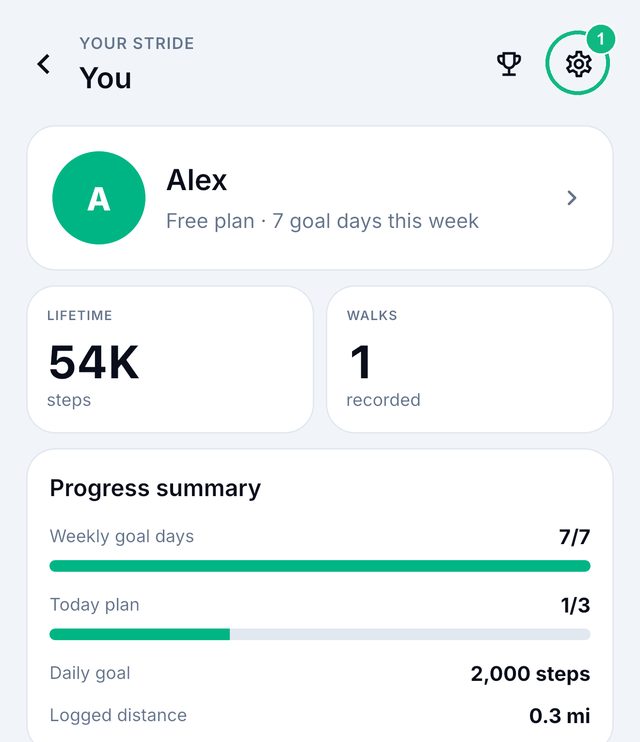
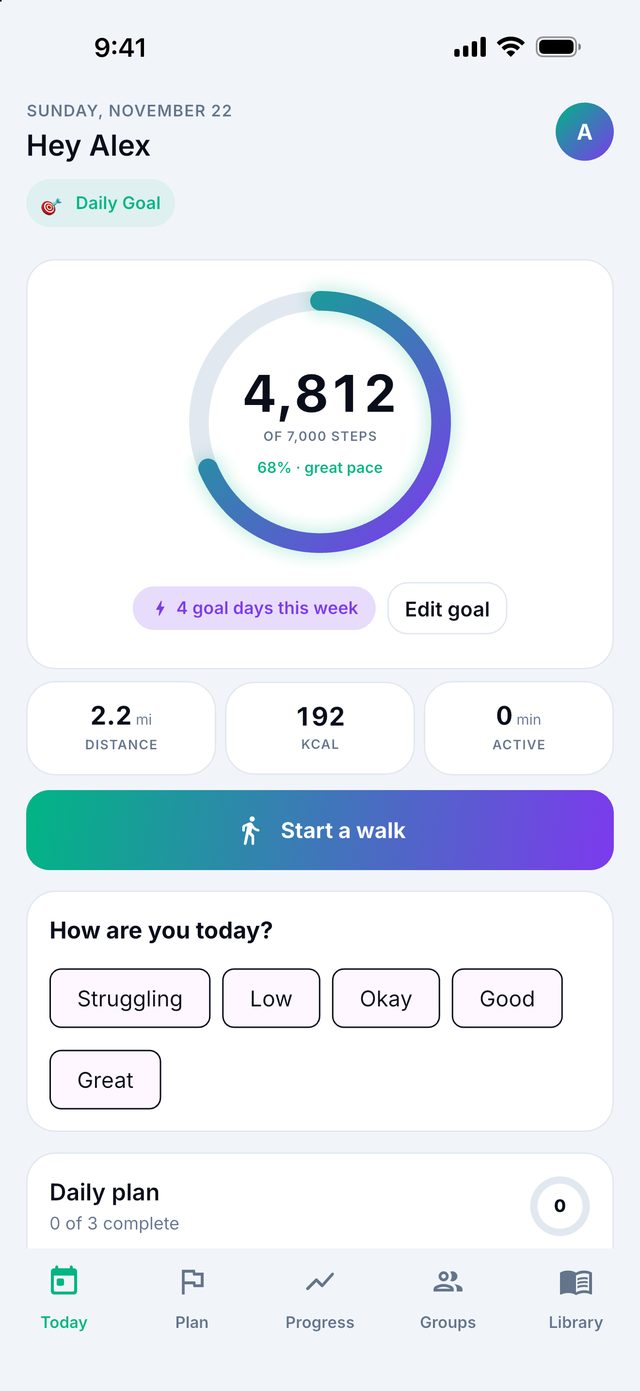
At the bottom of the screen there are 5 tabs: Today (your steps, goal and the button to start a walk), Plan (your walking plan), Progress (history and charts), Groups (walk with others) and Library (short articles).
Your round picture at the top right opens You, your profile. The gear there opens Settings.